File conversion
How to Convert Video Files: MP4 to MP3, MOV, MKV and WebM to MP4
Need to convert video files online without uploading private media? This video conversion guide explains how to convert MP4 to MP3, extract audio from video, and convert MOV, MKV, or WebM to MP4. It also helps you choose the right tool for the output you need.
UUScribe provides free browser video converter tools for these jobs. Each file converter in this guide processes the source locally in your desktop browser. The file is not uploaded to UUScribe for conversion, and the original is left unchanged.
Here are five common video format problems, the right tool for each one, and the shortest path from source file to finished download.
Quick answer: which video converter should I use?
| Your problem | Best UUScribe tool | Result |
|---|---|---|
| I only need the sound from an MP4 | MP4 to MP3 Converter | A widely compatible MP3 file |
| I want audio from a video, with a choice of format | Extract Audio from Video | Original audio, MP3, or WAV |
| My iPhone or QuickTime video is a MOV | MOV to MP4 Converter | A more broadly compatible MP4 |
| My MKV does not play in the app I need | MKV to MP4 Converter | An MP4 for easier playback and sharing |
| My WebM recording needs to work outside the browser | WebM to MP4 Converter | An MP4 with H.264/AAC fallback when needed |
How to convert MP4 to MP3 when you only need the audio
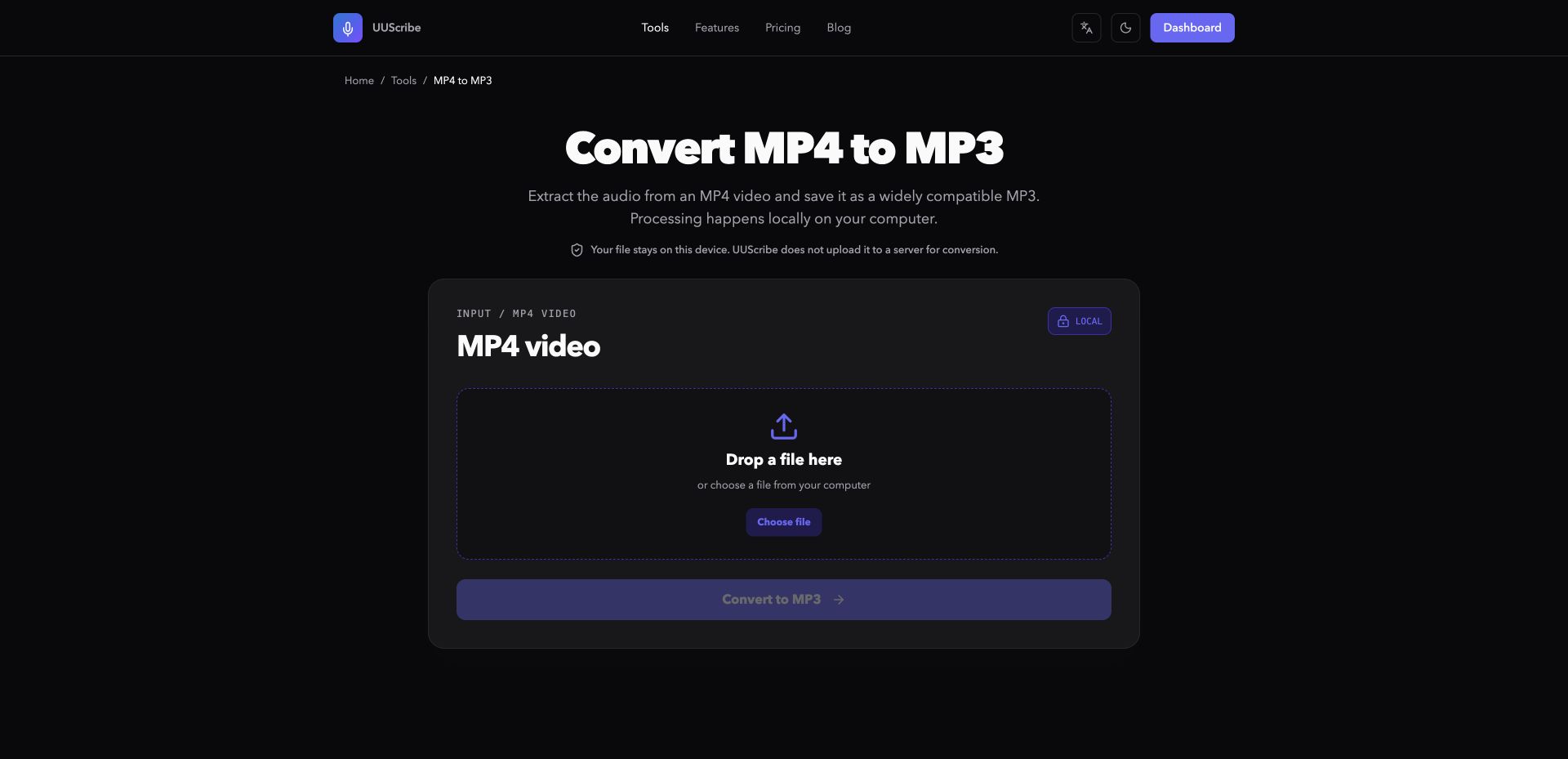
An MP4 can contain video, audio, subtitles, and other data. If you only want to listen to a lecture, interview, voice recording, or presentation, keeping the video makes the file larger and less convenient than necessary.
The direct solution is the UUScribe MP4 to MP3 Converter. It reads the first usable audio track from the MP4 and creates a separate MP3 file. The source video is not changed.
Convert MP4 to MP3 step by step
- Open the MP4 to MP3 Converter in a desktop browser.
- Choose one
.mp4file from your computer. - Select Convert to MP3.
- Wait while the browser extracts and encodes the audio locally.
- Download the finished MP3.
When MP3 is the right output
MP3 is a practical choice when you want a smaller audio-only file that works in most media players, editors, messaging apps, and car audio systems. It is useful for listening to recorded lessons, reviewing interview audio, or keeping the spoken portion of a screen recording.
The converter uses the first usable audio track. If a video contains several languages or commentary tracks, check the result before deleting or archiving anything. Your original MP4 remains untouched, so you can always return to it.
How to extract audio from video as Original, MP3, or WAV
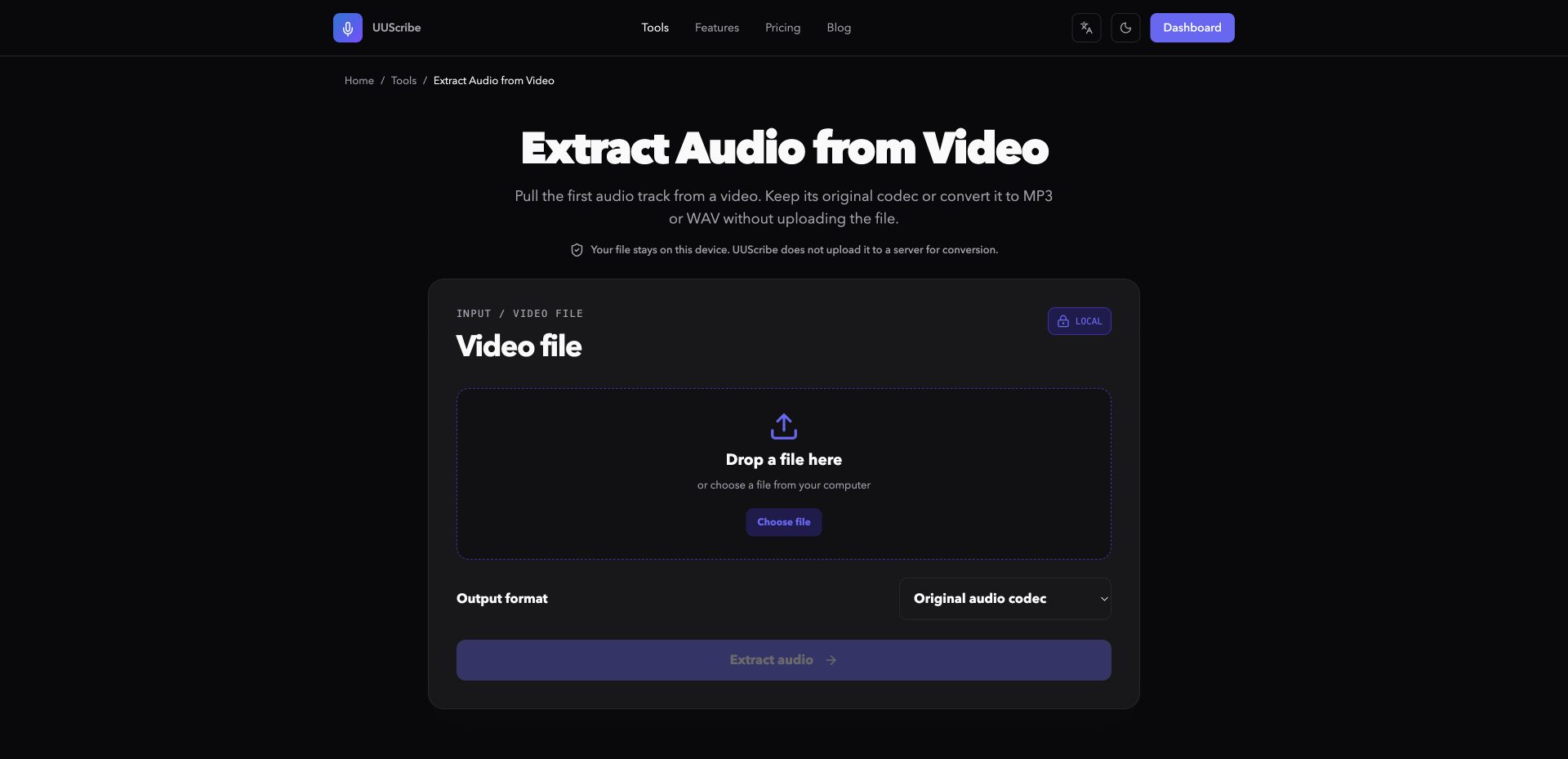
Sometimes “video to audio” is not the same as “MP4 to MP3.” Your source might be MOV, MKV, WebM, AVI, or M4V, and your next step may require WAV or the original audio codec instead of MP3.
Use Extract Audio from Video when you need more control. The tool supports common video containers and lets you choose among the original audio format, MP3, and WAV.
Extract audio from video step by step
- Open the Extract Audio from Video tool.
- Choose a supported video file from your computer.
- Select the output you need: Original, MP3, or WAV.
- Start the extraction.
- Download the new audio file when it is ready.
Original audio, MP3, or WAV?
- Choose Original when you want to avoid re-encoding and the detected codec can be saved directly. This can preserve the existing audio data and finish faster.
- Choose MP3 when broad compatibility and a smaller file are the priorities.
- Choose WAV when you plan to edit the audio and do not mind a much larger file.
This tool extracts the first usable audio track. It is a good fit for pulling dialogue from a camera recording, saving the sound from a screen capture, or preparing audio for editing or transcription.
How to convert an iPhone or QuickTime MOV to MP4
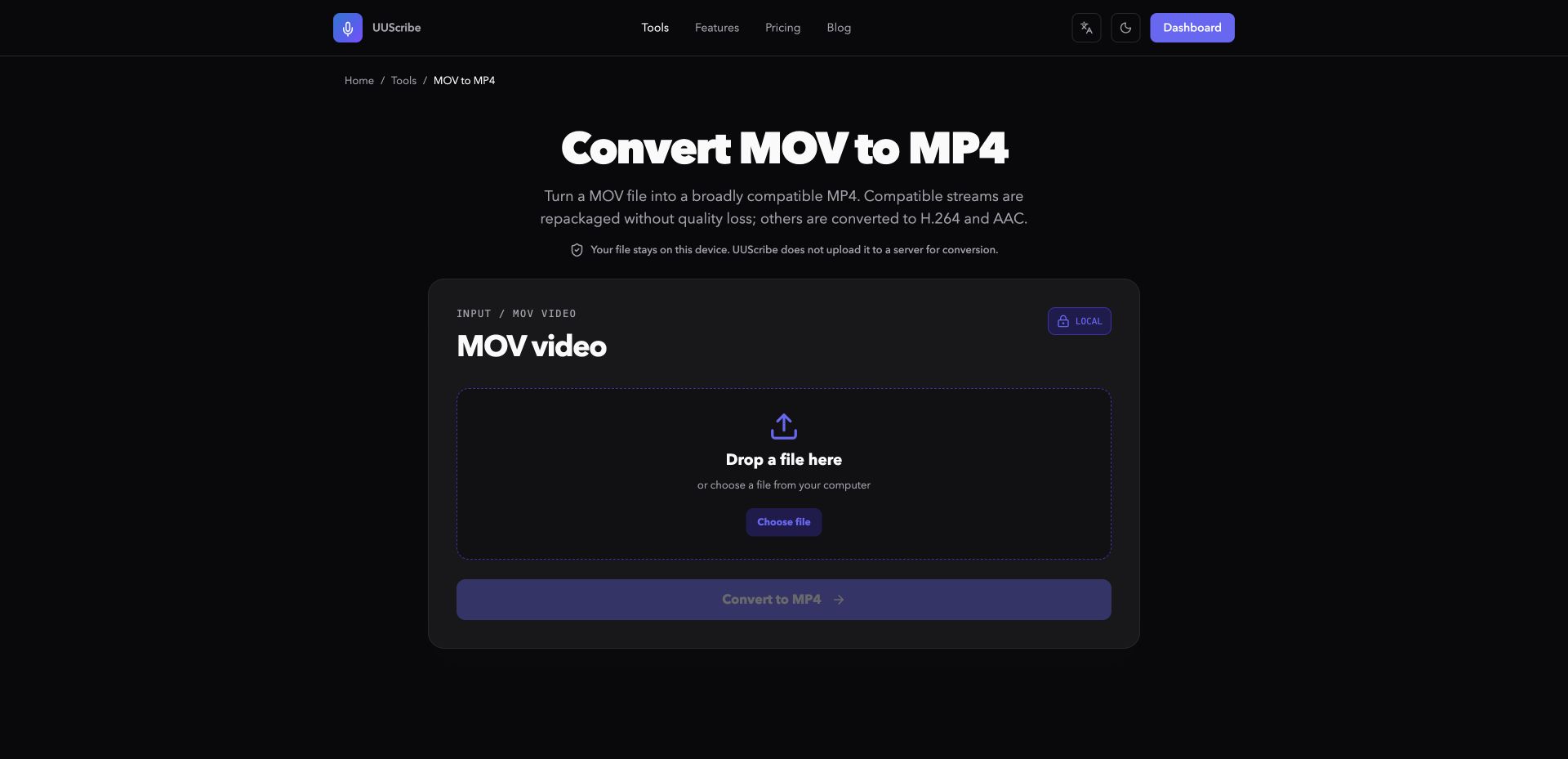
MOV is common on Apple devices and in QuickTime-based workflows, but some websites, presentation tools, messaging apps, and Windows software work more reliably with MP4. Converting an iPhone MOV to MP4 can therefore make the video easier to open, upload, and share.
The UUScribe MOV to MP4 Converter creates a more broadly compatible MP4 directly in your browser.
Convert MOV to MP4 step by step
- Open the MOV to MP4 Converter on your desktop or laptop.
- Choose one
.movfile. - Start the conversion.
- Let the tool check the video and audio streams.
- Download the finished MP4.
Why one MOV conversion may be faster than another
MOV and MP4 are containers. The video and audio streams inside them may already be compatible with MP4, or they may need to be converted.
When the streams are compatible, the tool can repackage them into MP4 without re-encoding. This fast path preserves their existing quality. When they are not compatible, the browser converts the video to H.264 and the audio to AAC. That path uses more processor time and may take longer, especially for large or high-resolution videos.
Common iPhone MOV files are supported, subject to the codecs available in the browser converter. After downloading, play a short section of the MP4 and check its sound before sending it or removing your original.
How to convert MKV to MP4 for easier playback
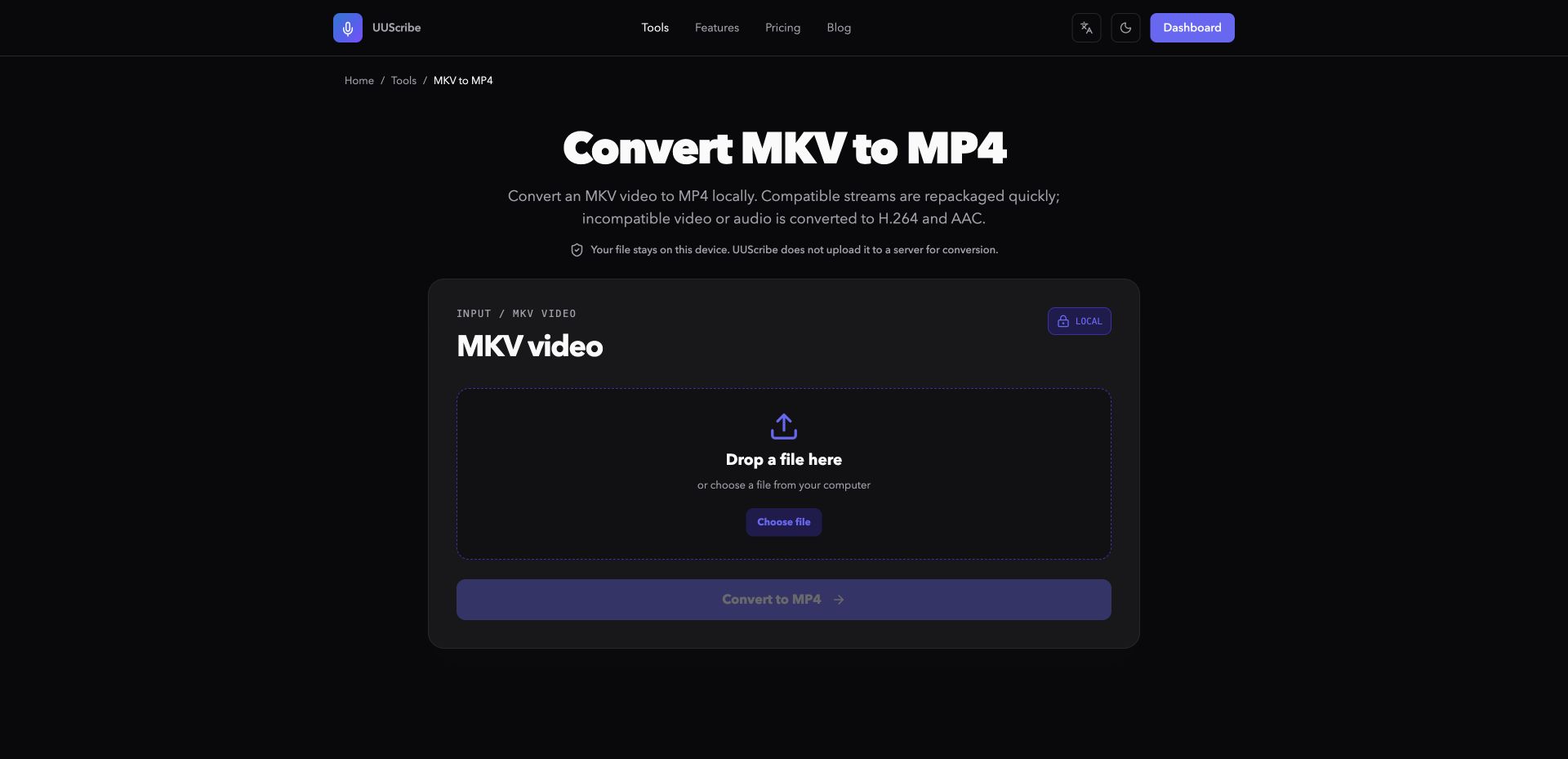
MKV is a flexible container that can hold multiple audio tracks, subtitle tracks, and high-quality video. That flexibility is useful for storage, but it also means some apps and upload forms do not accept it.
Use the UUScribe MKV to MP4 Converter when you need an MP4 for easier playback, editing, or sharing.
Convert MKV to MP4 step by step
- Open the MKV to MP4 Converter.
- Choose one
.mkvfile from your computer. - Start the conversion.
- The browser first checks whether the main streams can be repackaged.
- Download the resulting MP4.
Compatible streams use the faster quality-preserving path. If the video or audio is not suitable for MP4, the tool converts it to H.264 and AAC.
The current converter uses the primary video and first usable audio track. Embedded subtitles are not included in the output. If subtitles or alternate-language audio are important, keep the MKV and verify the downloaded MP4 before using it as your only copy.
How to convert a WebM browser recording to MP4
WebM is widely used for web video, browser recordings, and web-based meetings. Outside the browser, however, a WebM file may not be accepted by an editor, social platform, slide deck, or device.
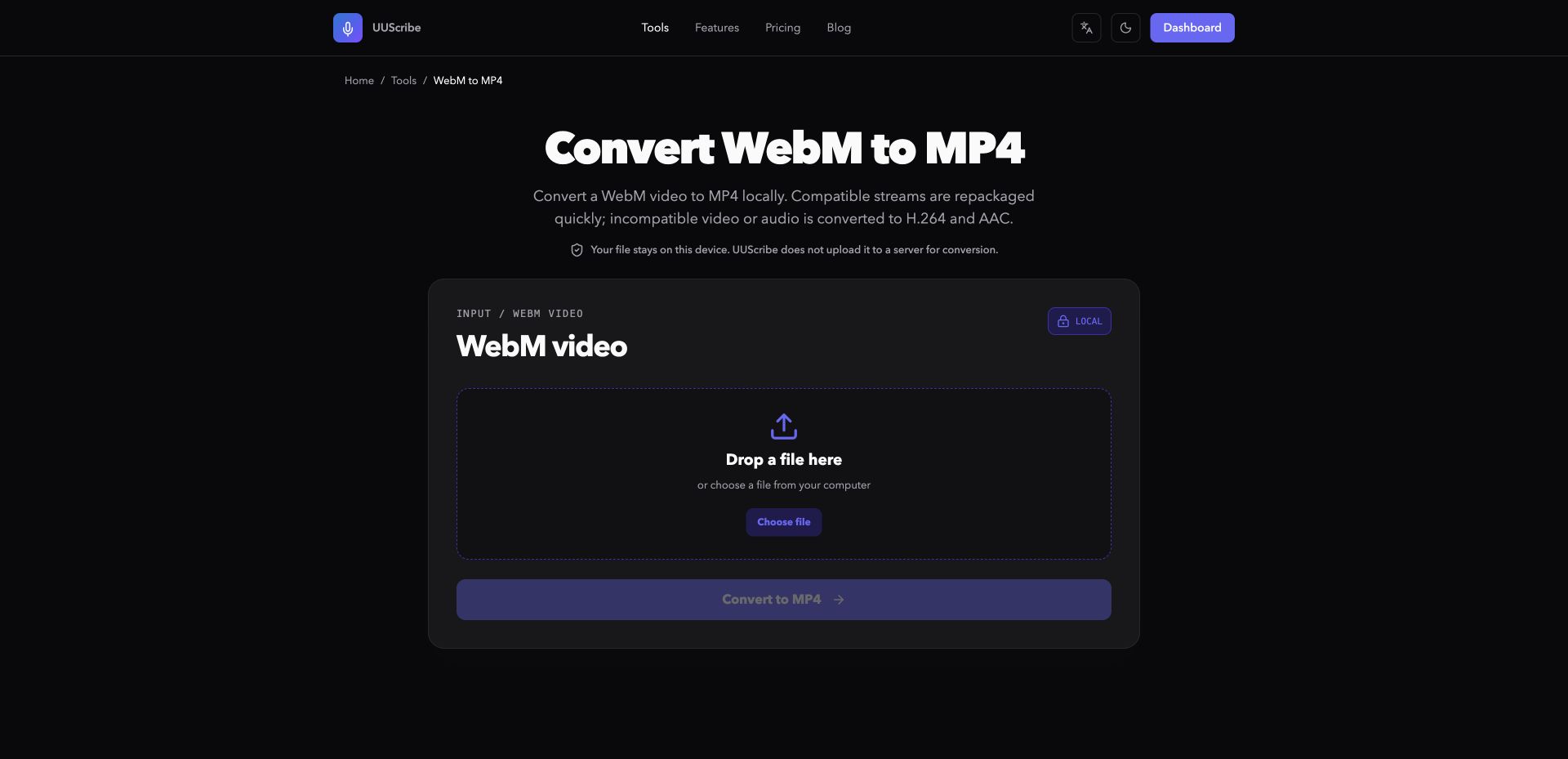
The UUScribe WebM to MP4 Converter turns the WebM into a more widely supported MP4.
Convert WebM to MP4 step by step
- Open the WebM to MP4 Converter in a desktop browser.
- Choose your
.webmfile. - Start the conversion.
- Wait while the browser repackages compatible streams or encodes incompatible ones.
- Download and test the MP4.
As with MOV and MKV, the fastest result is possible when the existing streams already work in MP4. Otherwise, the tool uses H.264 video and AAC audio for compatibility. The first usable audio track is included, while embedded subtitles are not included in the current output.
Why use a private browser video converter?
For the six file-based UUScribe media tools, the selected file stays on your device during conversion. If you need a no upload video converter, this private workflow has three practical benefits:
- Privacy: the source is not uploaded to a conversion server.
- No account step: you can open the tool and choose a file without signing in.
- A safer workflow: the converter creates a new result and does not overwrite the original.
Local processing also means your computer does the work. A large file that requires H.264/AAC encoding can use substantial memory and processor time. Keep the tab open until the download is ready. For the most reliable experience, use a current desktop browser; conversion in mobile browsers is less predictable.
How to avoid common conversion problems
Before you start, use these quick checks:
- Choose the tool by the result you need. Use MP4 to MP3 for a straightforward MP3. Use Extract Audio from Video when you need another source container or want Original, MP3, or WAV.
- Keep the original file. A successful download is a new file, not a reason to remove your source immediately.
- Test the result. Check the beginning, a point in the middle, and the end. Confirm that audio is present and synchronized.
- Expect re-encoding to take longer. MOV, MKV, and WebM files with incompatible streams need more work than a simple repackage.
- Check tracks and subtitles. The current conversion tools focus on the primary video and first usable audio track. Embedded subtitles are not carried into MKV-to-MP4 or WebM-to-MP4 output.
All free UUScribe file conversion tools
Need a different result? These are all of the current file-based media tools:
- MP4 to MP3 Converter — save the first usable audio track from an MP4 as MP3.
- Extract Audio from Video — extract audio from MP4, MOV, MKV, WebM, AVI, or M4V as the original format, MP3, or WAV.
- Remove Audio from Video — create a silent copy while preserving the video stream whenever possible.
- MOV to MP4 Converter — make QuickTime and common iPhone video easier to play and share.
- MKV to MP4 Converter — convert an MKV to a broadly compatible MP4.
- WebM to MP4 Converter — turn a browser-friendly WebM into an MP4 for more apps and devices.
Choose the tool that matches your source and desired output, select the file, and let the browser do the conversion locally. If what you really need is the spoken content as editable text, you can also open UUScribe to transcribe supported audio and video files.
Browse all UUScribe tools to find the right workflow for your next media file.