Work without the cloud
Offline Transcription Software for Android: Transcribe Anywhere with UUScribe
Turn meetings, interviews, voice notes, audio, and video into text—even when the internet is unavailable or the recording should stay on your phone.
Get UUScribe on Google PlayYou may need a transcript while traveling, working in a place with unreliable Wi-Fi, or handling a conversation you would rather not upload. UUScribe is offline transcription software for Android that can turn recordings into text directly on your phone.
The goal is simple: capture what matters and get usable text without depending on a connection. Record a conversation in UUScribe or choose an audio or video file already on your device, select Local, and review the transcript when it is ready.
When cloud transcription is not a good fit
Most transcription services expect you to upload a recording. That can be inconvenient on a flight, at a remote job site, during international travel, or anywhere a stable connection is not guaranteed. Large media files can also take time and data to upload before the real work even begins.
Privacy can be just as important as connectivity. Interviews, research sessions, personal voice notes, internal discussions, and early ideas may contain information you do not want to send to a remote transcription service. Offline transcription software gives you another choice: process the recording on the device you already control.
What the Android app adds to UUScribe
The web version focuses on cloud transcription. The Android app keeps that option and adds Local mode, so you can choose where each recording is processed.
Cloud transcription
Upload audio or video for remote processing when you have a reliable connection and want to keep the work off your phone.
Local transcription
Record in the app or import audio and video from your phone, then use a downloaded model to create the transcript on the device.
Keep sensitive conversations on your phone
Local mode is designed for moments when the location of your recording matters. The transcription step runs on your Android phone instead of uploading the recording to the UUScribe cloud workflow. The result is saved with the local task, so you can keep working from the same device.
This can be useful for confidential interviews, private reflections, unpublished research, team discussions, and client conversations. Your own organization may still have rules about recording, device security, and retention, but UUScribe lets you remove the transcription upload from that workflow.
Before a trip or sensitive session, download the offline option and test it with a short recording. If you need a clear network boundary, you can then use Local mode while the phone is in airplane mode.
Why use a local transcription model?
Local mode is useful when cost, privacy, or connectivity matters more than remote processing.
Free after setup
Local transcription does not use your cloud minutes and does not require a paid subscription. You only need to download a model first.
Private by design
The recording is processed on your Android phone instead of being uploaded to the UUScribe cloud transcription service.
Works without internet
Once the model is on your phone, you can transcribe on flights, during travel, or anywhere the connection is weak or unavailable.
Download and test the model before you go offline. Local transcription uses phone storage, battery, and processing time, and important names, numbers, and quotations should still be reviewed.
Should you choose Local or Cloud?
UUScribe gives you both choices because different moments call for different priorities.
| What matters | Choose Local | Choose Cloud |
|---|---|---|
| Internet access | You are offline or have an unreliable connection | You have a stable connection |
| Recording privacy | You do not want to upload the recording for transcription | Uploading the recording fits your workflow |
| Phone resources | You are comfortable using phone storage and battery | You prefer processing to happen remotely |
| Long or difficult audio | You can allow more time and review the result | You prioritize speed or stronger processing |
| YouTube links | Use an imported file instead | Paste the link into the cloud workflow |
Who benefits from offline transcription software?
Journalists and interviewers
Create a searchable first draft in the field without depending on venue Wi-Fi or uploading an unpublished conversation.
Researchers and students
Turn interviews, lectures, and study recordings into text while keeping early material on the phone.
Creators and independent professionals
Capture ideas, client notes, and spoken drafts wherever inspiration appears—even when there is no signal.
Travelers and field teams
Continue working on flights, trains, remote sites, and international trips without relying on mobile data.
Choose an offline model
Choose based on the recording language and the storage available on your phone.
| Model | Best for | Languages | Download size |
|---|---|---|---|
| SenseVoice | Everyday notes and conversations with a smaller download | Chinese, English, Japanese, Korean, Cantonese | About 228 MB |
| Whisper Small | Recordings that need broader language coverage | Multilingual | About 375 MB |
If both models support your language, test the same short recording with each one. Keep the model that works better for your voice, environment, and phone.
How to transcribe locally in the Android app
Set up the model once, then choose Local whenever you want the recording to stay on your phone during transcription.
1. Download an offline model
Open your profile, select Offline Model, and download SenseVoice or Whisper Small while you still have internet access.
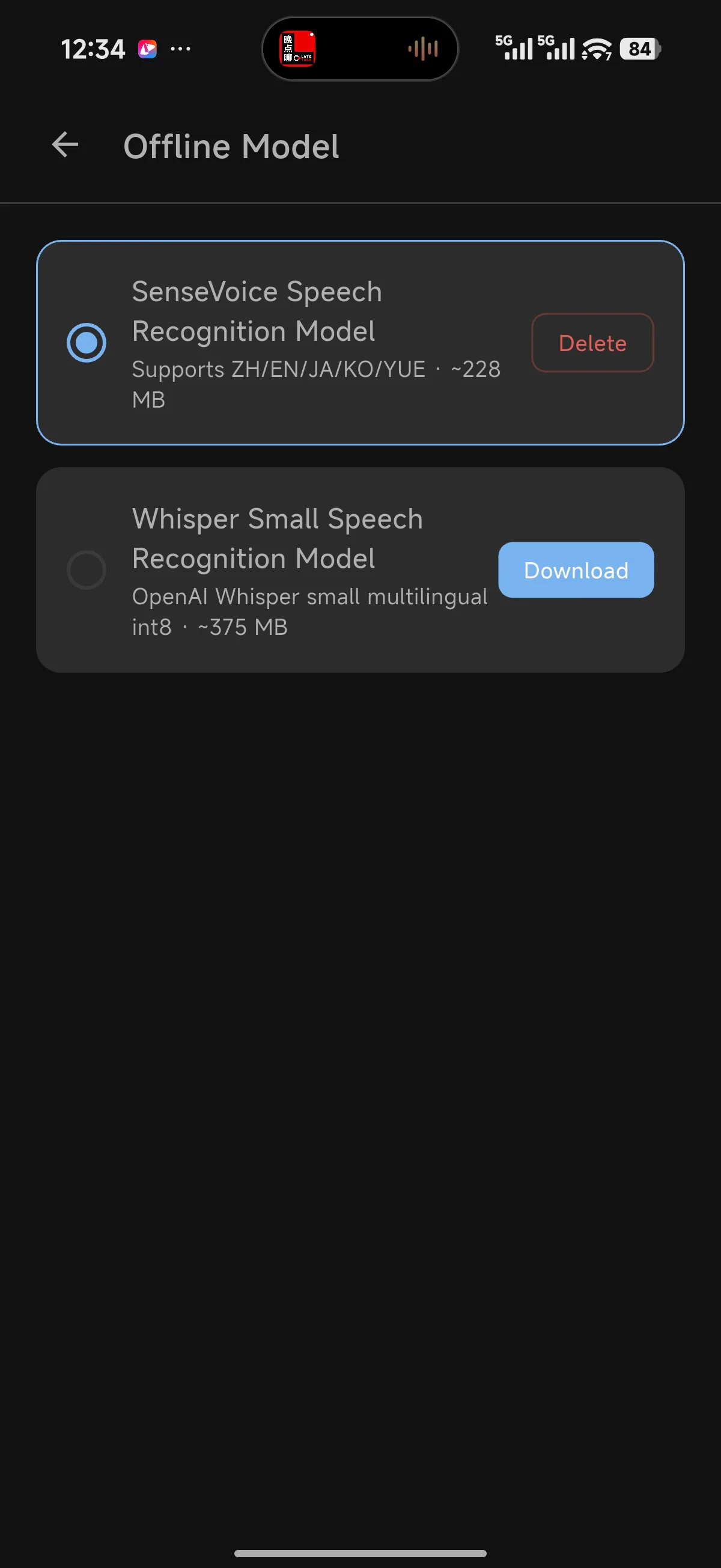
Step 1: Download and select an offline speech recognition model. 2. Record or choose a file
Tap the add button, then record in UUScribe or choose an audio or video file from your phone. The recording screen lets you pause or stop when you are finished.
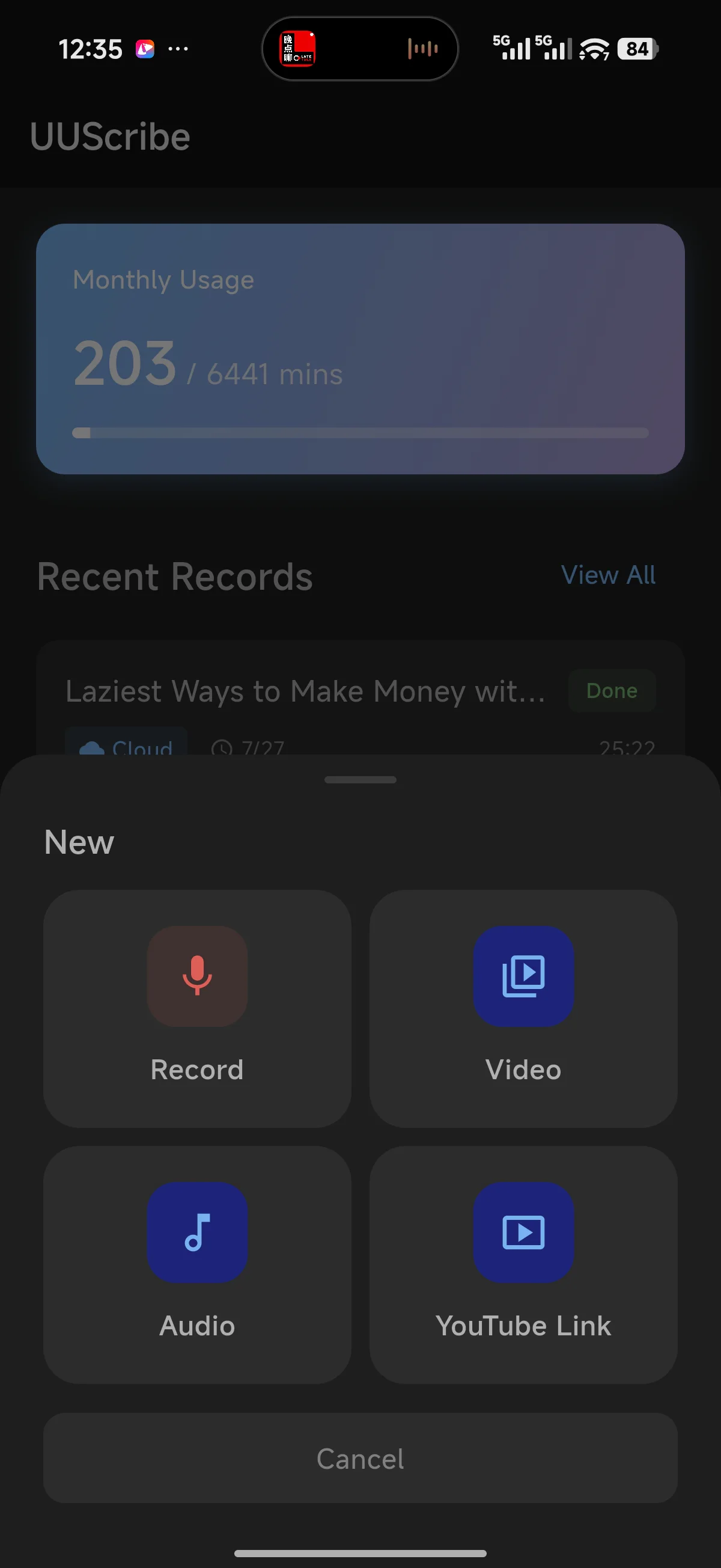
Step 2: Start a recording or choose an audio or video file. 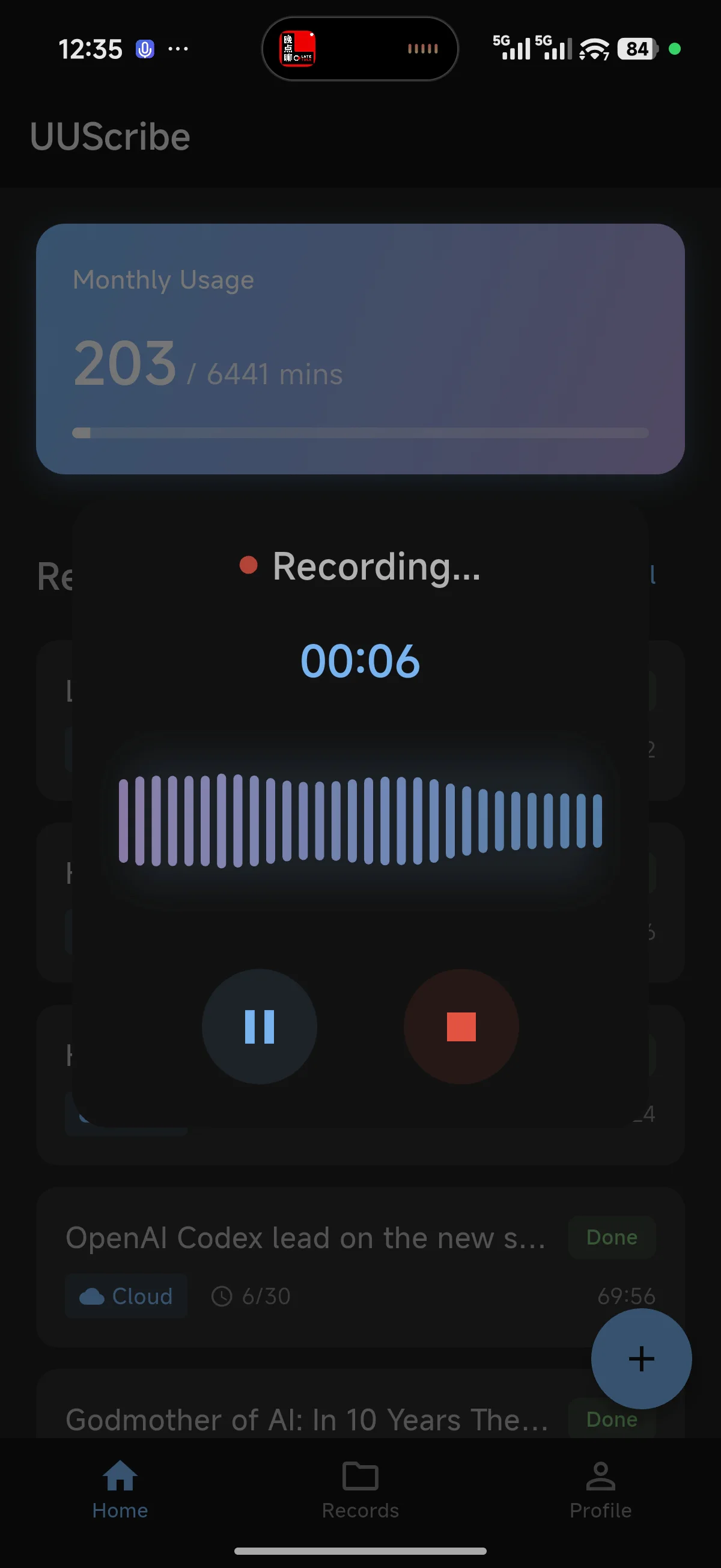
Step 2: Pause or stop the recording when you are finished. 3. Choose Local mode
When the mode selector appears, choose Local to process the recording on your phone. Choose Cloud only when you prefer remote processing.
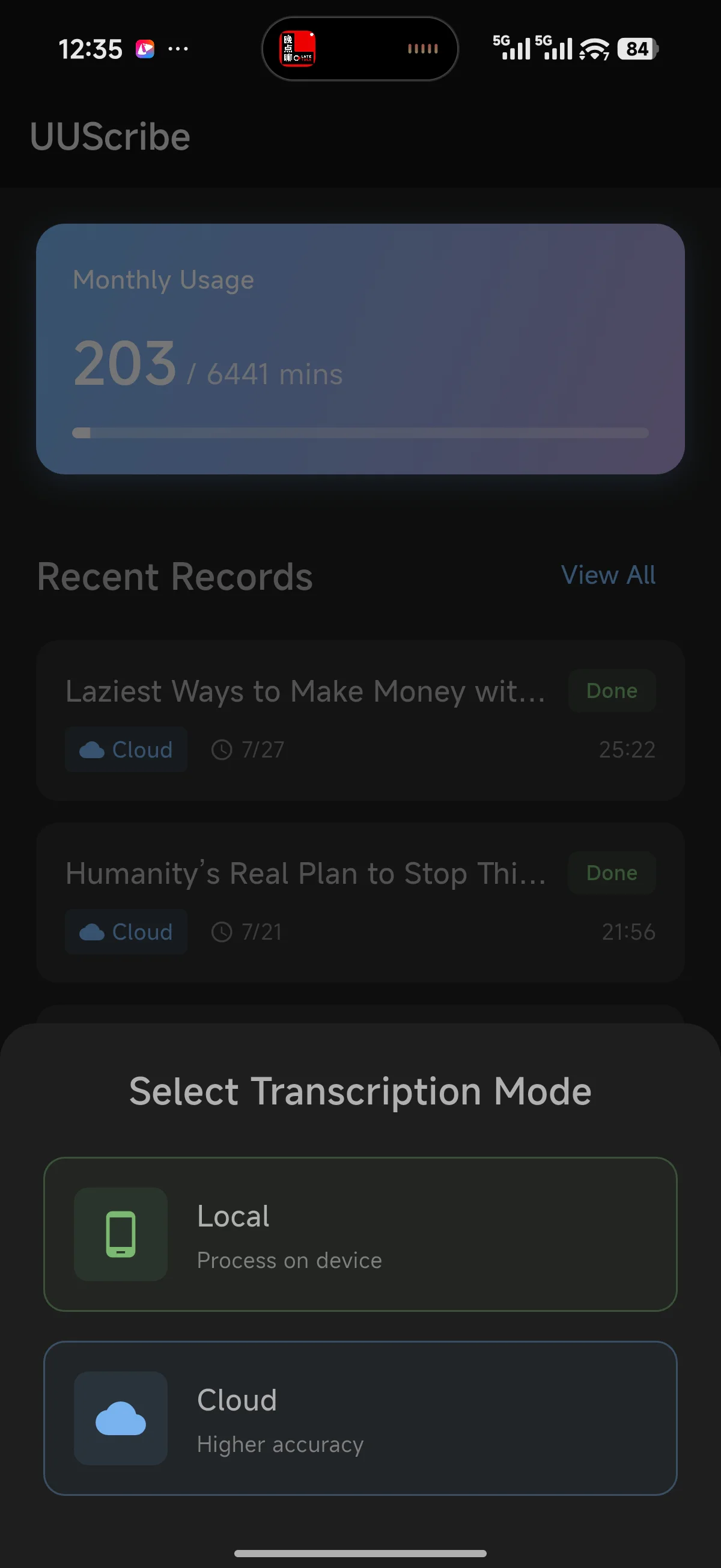
Step 3: Choose Local to process the recording on the device. 4. Find the result with a Local label
Return to the home screen and look for the green Local label. Open the completed recording, then review important names, numbers, and quotations before using the transcript.
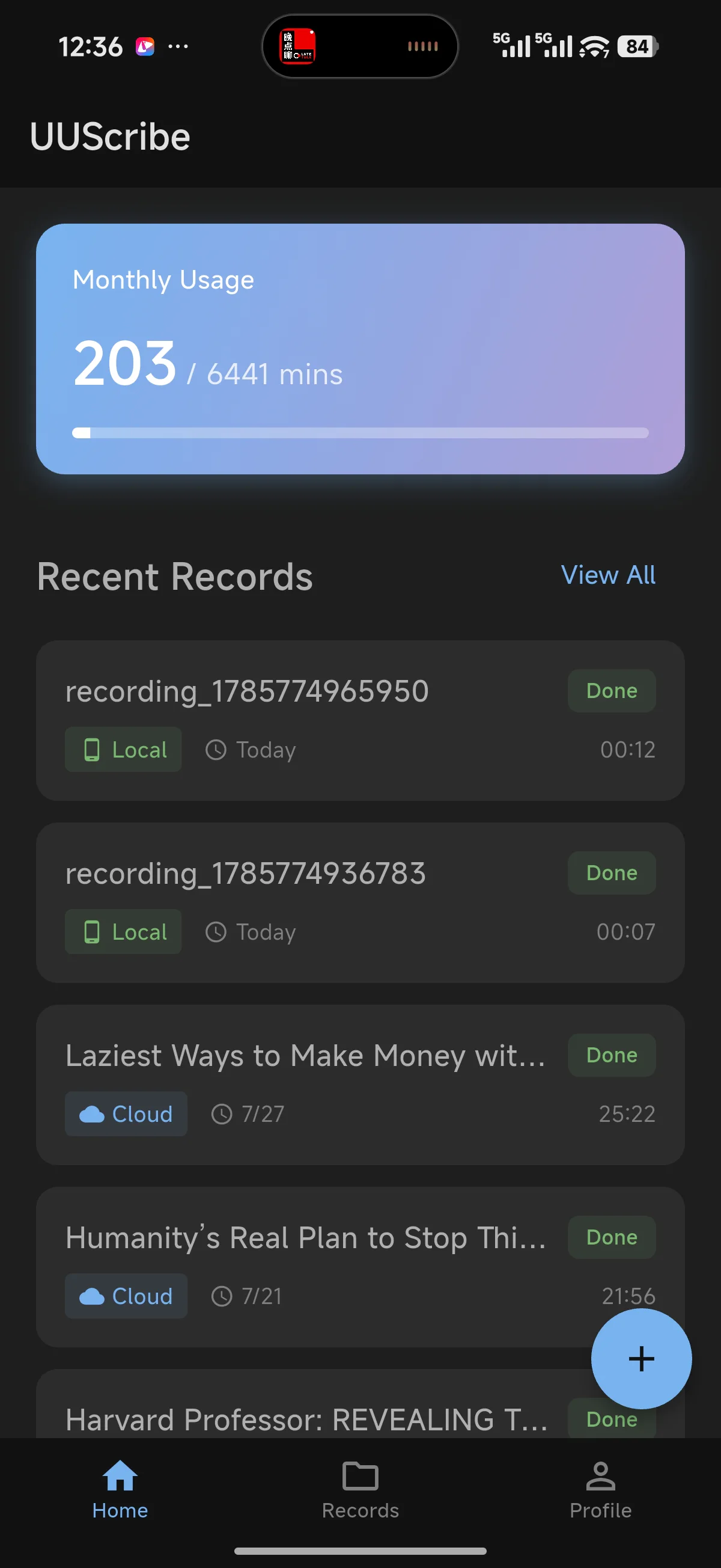
Step 4: Completed on-device recordings appear with a Local label.
Before you rely on Local mode
A short test prevents surprises when you no longer have a connection.
- Download the model and run a sample transcription before a trip or important recording.
- Leave enough free storage and battery for both the recording and the transcription.
- Keep the phone close to the speaker and reduce background noise when possible.
- Allow more time for long recordings or older phones, and review the final text.
Offline transcription software FAQ
Can UUScribe transcribe without an internet connection?
Yes. Download an offline option first, then choose Local when you create the transcript. Test it before you travel or enter an area with no connection.
Does Local mode upload my recording?
The Local transcription path does not upload the recording to the UUScribe cloud transcription service. It processes the recording on your phone and saves the result with the local task.
What can I transcribe offline?
You can transcribe a recording made in UUScribe or import audio and video stored on your phone. YouTube links currently use the Cloud workflow.
Is UUScribe useful only when I have no internet?
No. Local mode is also useful when you have a connection but prefer not to upload a private interview, personal note, internal meeting, or unpublished recording.
Will an offline transcript be perfect?
No speech-to-text result is perfect. Clear audio, a nearby phone, limited background noise, and a final review will give you a more useful transcript.